Turn any screenshot or URL into a WordPress page in minutes
From screenshot to WordPress page in minutes: hand NibWP an image or a live URL and get a real, editable page in your builder — native elements, correct nesting, your design tokens — written only when you approve the plan.
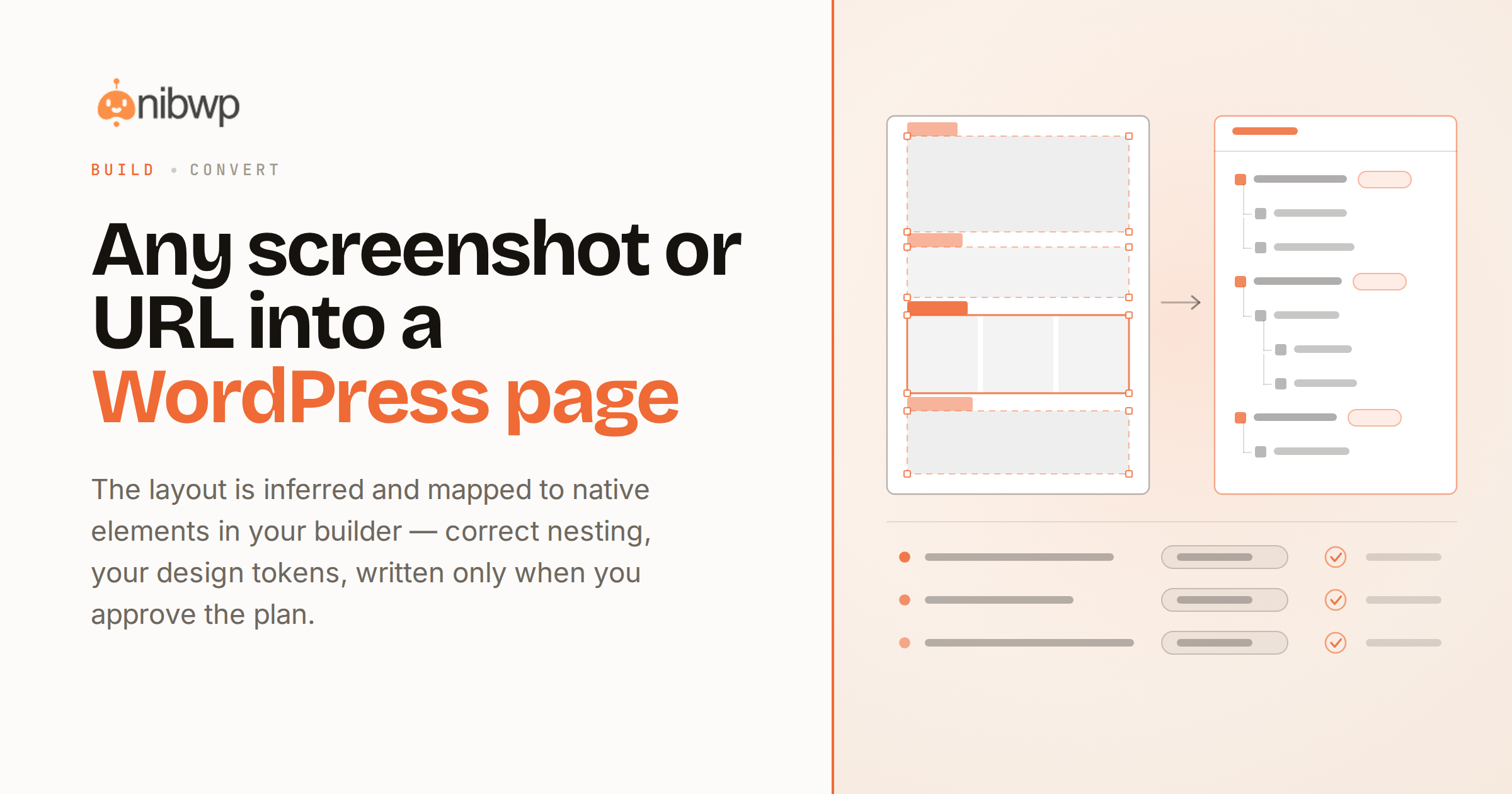
“Make it look like this” is how most page builds actually start — a screenshot, a reference URL, a competitor's section a client loved. Turning a screenshot into a WordPress page usually means an hour of eyeballing spacing and rebuilding by hand. NibWP does the eyeballing for you.
Paste the image or the URL into your connected AI client and ask for a page. The layout is inferred — rows, columns, headings, buttons, spacing — and mapped to native elements in your builder: Elementor widgets, Bricks elements, Kadence blocks or Etch components. You review the plan, approve, and open the result in the editor.
URLs convert with an edge — real computed styles and assets, images sideloaded into your media library. Working from a design file instead? Figma to WordPress pulls structured tokens straight from the source. Starting from markup? See converting HTML to Kadence Blocks. It's all one system — the AI website builder agencies ship with, licensed once for every client site on pricing.
From “make it look like this” to shipped
Screenshot in
A mockup, a dribbble shot, a photo of a whiteboard — the layout is inferred from pixels: structure, hierarchy, spacing.
Or a live URL
Rebuild from the rendered page itself — computed styles, real fonts, actual assets, images sideloaded to your library.
Native page out
The result is your builder's own elements with correct nesting and IDs — editable by anyone on the team, forever.
On your tokens
Colors, type and spacing map to your global settings, so the page lands on-system, not as one-off inline styles.
Validated first
The element tree is checked and scored against the builder's rules before anything is written to the site.
Refine by instruction
“Tighter mobile padding, swap the button to outline” — tweaks edit native attributes, and re-validate before saving.
Screenshot to WordPress page: how it works
Four steps, no manual rebuilding:
- Drop the source — paste a screenshot or a URL into Claude, Cursor or ChatGPT connected to your site.
- NibWP maps it — rows, columns and components become your builder's native elements.
- Review the plan — target page, element tree and tokens, scored and shown before any write.
- Approve and polish — the page is in your builder, editable; refine by instruction from there.
Why not just a generic AI?
Screenshot-to-code tools stop at code. A page you can hand to a client has a higher bar.
Screenshot-to-code tools
- Output raw HTML/CSS that has to be ported into WordPress by hand
- Every result is off-system — its own colors, its own spacing
- One-shot output: wrong guess, start over
NibWP
- Writes directly into your builder as native, editable elements
- Maps to your global tokens and classes automatically
- Plan first, then refine by instruction — no start-overs
Safe by default
Client-site rules apply here too:
- The page is written only after you approve the plan.
- Output is validated against the builder's own rules first.
- Assets are sideloaded properly — no hotlinking from source sites.
- Use it on designs and properties you have the rights to rebuild.
Questions, answered
Screenshots, URLs, and what comes out the other side.
How close is the result to the screenshot?
Which builders can it write to?
Can I convert a whole site this way?
Does it copy other people's sites?
The next “make it look like this” takes minutes.
Screenshot or URL in, editable page in your builder out — get the Bundle and try it on the next brief.