Convert a screenshot to Bricks elements your team can edit
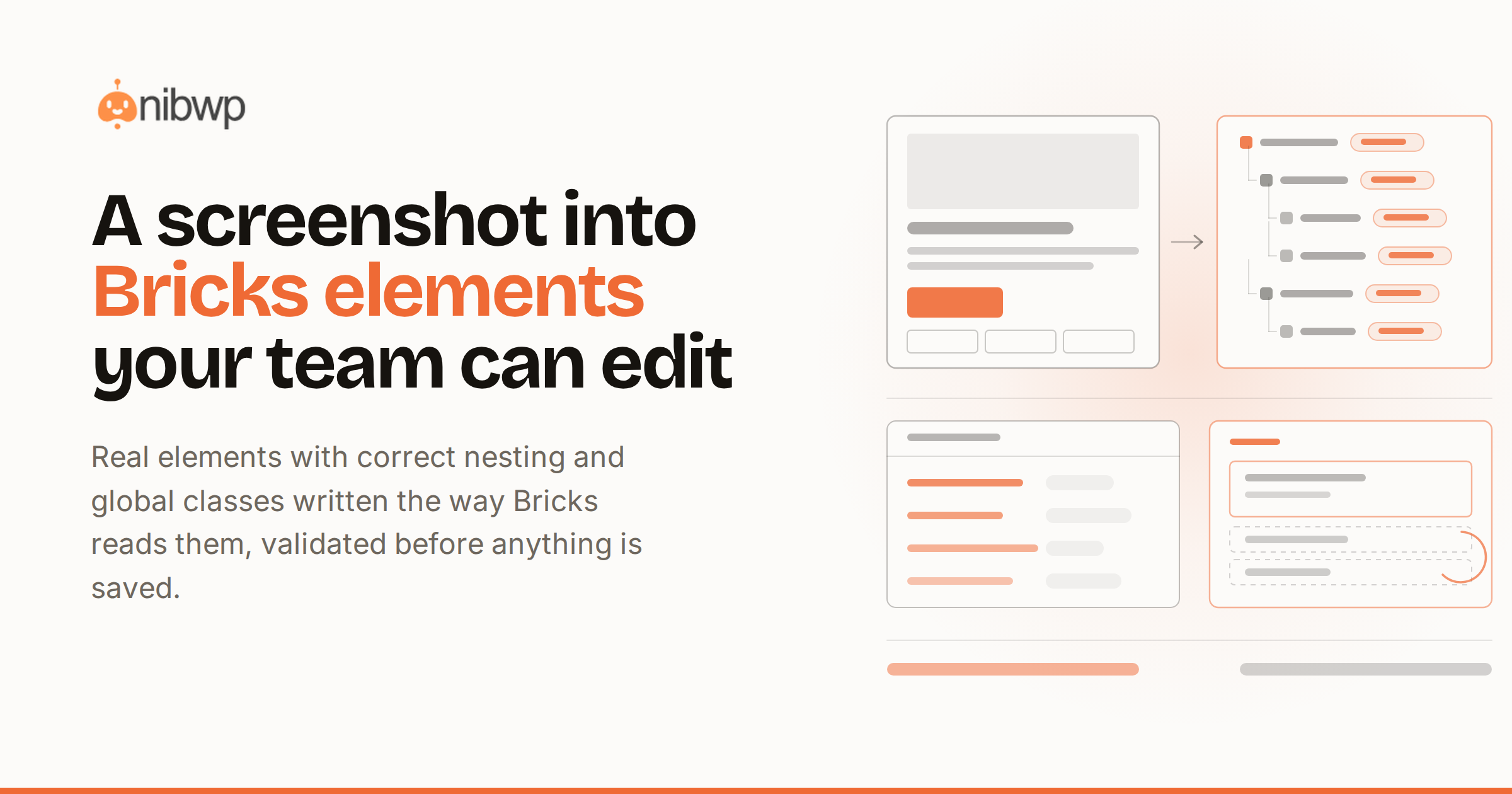
Bricks users are picky about markup — it's why they chose Bricks. So the usual screenshot-to-code output, a soup of divs and inline styles, is exactly what a Bricks site doesn't need. Converting a screenshot to Bricks should produce Bricks: real elements, correct structure, global classes — output your team edits in the builder, not around it.
What good Bricks output looks like
- Real elements. Sections, containers, headings, buttons — the element tree a Bricks developer would build, not one custom-HTML element wrapping everything.
- Global classes, correctly written. Styling lands in classes Bricks can actually read — structured the way Bricks stores them, so the builder's controls stay live.
- Structure that nests. Containers inside sections, elements inside containers — the hierarchy Bricks expects, validated before writing.
- A plan first. The element tree is shown and approved before anything is saved to the site.
Screenshot to Bricks, step by step
- Drop the screenshot into your connected AI client with the target: “Build this as a Bricks section on the services page.”
- Layout inference. Structure, hierarchy and spacing are read from the image and mapped to Bricks elements — the Bricks Pro skill knows the element library and its nesting rules.
- Styling to classes. Colors, type and spacing become global classes bound to your design system, not per-element one-offs.
- Validate and approve. The element tree is checked and scored; you approve; it writes.
- Refine in the builder or by instruction — “tighter on mobile, border instead of shadow” edits the elements, and everything stays editable either way.
The Bricks bonus: query loops
Repeating cards in a screenshot usually mean dynamic content in reality. Converted sections can use Bricks query loops instead of hard-coded repetition — the pattern from automating Bricks query loops — so the section updates itself when content changes.
Why Bricks punishes sloppy generation harder than most
Bricks reads its data structures on every request — global classes included. Output that guesses at those structures doesn't just look wrong, it can take a site down: one malformed class field and every page errors at once. That's why validation here isn't a nice-to-have; the skill writes classes in the exact format Bricks expects and checks the tree before anything is saved. Generated output should be held to a stricter standard than hand-built work, because nobody eyeballs it line by line afterward.
Landing in your design system, not beside it
Screenshots carry no tokens, so the mapper resolves inferred values against the design system your Bricks site already runs — existing global classes are reused where they match, and new ones follow your naming. Sites on ACSS get the full treatment: values snap to the framework's variables the way ACSS Pro manages them, so a converted section is indistinguishable from one your best Bricks developer classed by hand.
From sections to whole templates
The same pipeline scales up: convert a full-page screenshot section by section into a Bricks template, wire the repeating parts as query loops, and save reusable sections to your template library. Ask for the header and footer as template parts and the one-off conversion becomes the start of a system — which is the difference between copying a design and adopting it.
The bottom line
A screenshot is a fine spec — the failure was always the output format. Real elements, readable global classes and a validated tree make screenshot-to-Bricks a workflow instead of a cleanup job. Full Bricks surface: Bricks + MCP · skill: Bricks Pro. Works from URLs too — see screenshot or URL to a WordPress page · pricing.