VS Code + WordPress MCP: your site inside Copilot Chat
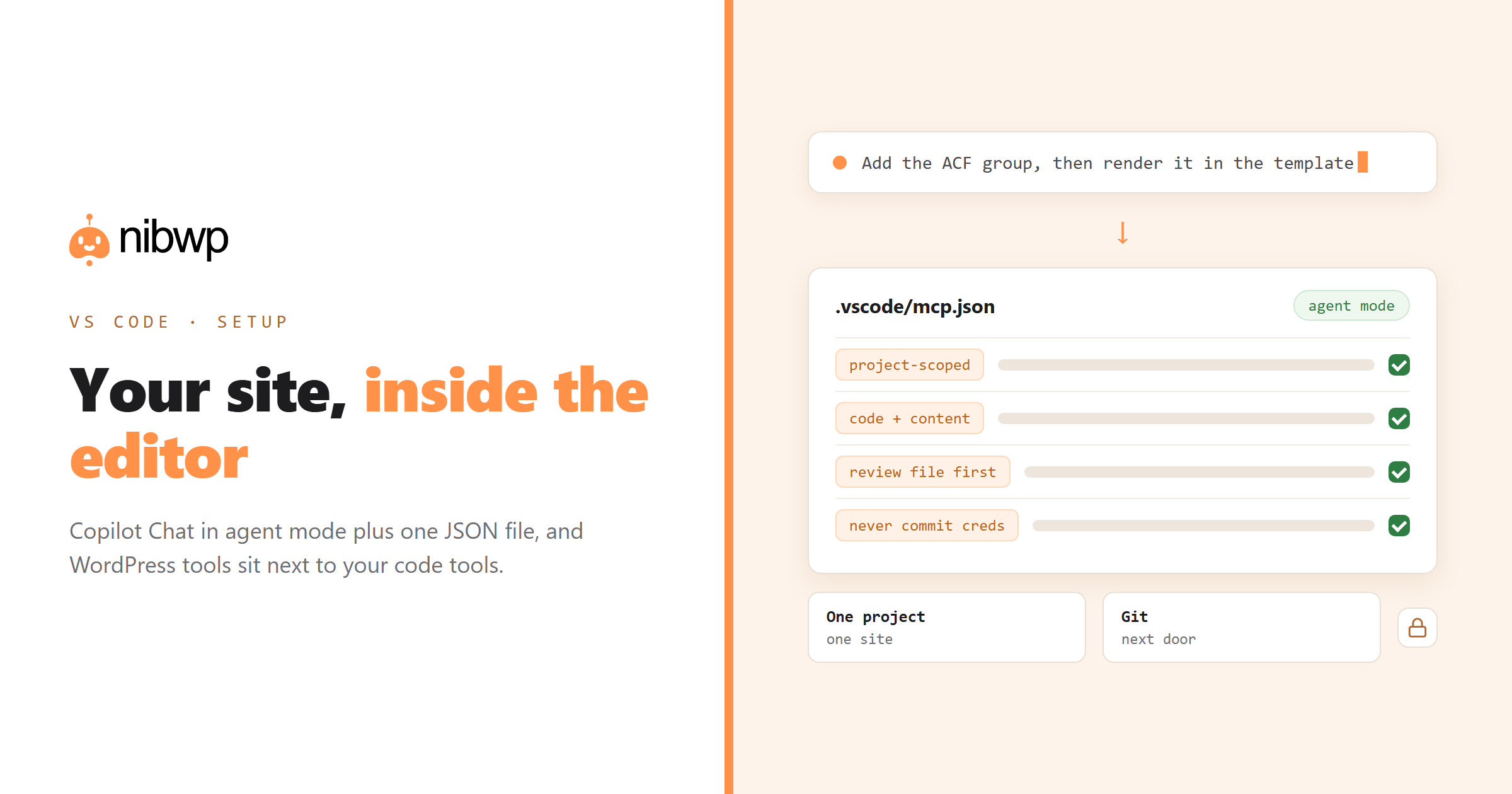
This guide covers connecting a WordPress site to VS Code, what changes about the workflow, and the specific tricks that make editor-based site work better than a browser tab.
What you need
- VS Code with GitHub Copilot and Copilot Chat, in agent mode. MCP servers are surfaced to the agent, not to plain inline completion.
- A WordPress site with an MCP server and abilities enabled.
- A scoped credential — read-only to start.
Connecting
VS Code reads MCP server definitions from a JSON file. Per project is usually right, because it keeps the site connection next to the theme or plugin code it belongs with:
// .vscode/mcp.json
{
  "servers": {
    "nibwp": {
      "type": "http",
      "url": "https://yoursite.com/wp-json/mcp/nibwp",
      "headers": { "Authorization": "Basic <your-credential>" }
    }
  }
}
Or let the CLI write it, which avoids endpoint typos and stores the credential the same way every time:
nibwp auth login https://yoursite.com --scope read,write
nibwp agent add vscode --project
Reload the window, open Copilot Chat, switch to agent mode, and check that the tools are listed. Then verify with a prompt that needs real data:
Using the WordPress tools, list the five most recently modified pages with slugs.Why the editor is a good place for site work
Three things you get in VS Code that a browser chat cannot give you:
- Code and content in one context. The agent can read your theme's template and the page's content in the same breath — useful when a change spans both, like adding a field and rendering it.
- Version control next door. Site changes go through approvals and the audit log; code changes go through git. Having both in one window makes the pairing obvious rather than accidental.
- Project-scoped connections. The .vscode/mcp.json lives in the repo for that client, so opening the project connects you to the right site — and never to the wrong one.
Workflows that fit the editor
Not everything belongs here; these do:
- Field-to-template work.
- Content model changes. Register a post type, add taxonomies, seed a few items, then wire the archive template.
- Migration scripting. Read structure from the site, transform it locally, write it back — with the intermediate file right there for inspection.
- Bulk content edits with a review file. Have the agent write proposed changes to a local markdown table, review it in the editor, then apply the approved rows.
Gotchas
- Agent mode is required. MCP tools are not available to plain chat or inline suggestions.
- Do not commit credentials. If .vscode/mcp.json holds a credential, keep it out of git or use an input/secret reference. Committing a client's write credential is the one genuinely bad outcome here.
- One project, one site. Resist adding five client sites to one workspace; the agent will eventually pick the wrong one.
- Reload after config changes.
Connection errors and their fixes: WordPress MCP not working. Comparing editors and other clients: which AI clients work with WordPress MCP.
A worked example: field to front end
The clearest demonstration of why the editor is the right place for some site work is a change that spans both halves of the stack. Adding a field is a site operation; rendering it is a code operation; doing them separately is where mistakes live.
Add an ACF field group "Case study metrics" to the case-study post type:
- client_name (text)
- metric_label (text, repeatable with metric_value)
- published_result (textarea)

Then update the case-study template in this repo to render the metrics
as a definition list, using our existing .cs-metrics classes.
Show me the field group plan first; make the template change as a diff.
The agent creates the field group through the ACF integration — so it appears correctly in wp-admin rather than as raw post meta — and edits the template file in your working tree, where git is watching. You review both halves in one place.
The review-file habit
For anything bulk, ask for the proposal as a file rather than as chat output. It is the single habit that makes editor-based site work better than a browser tab:
Find every post with a missing or over-length meta description.
Write your proposals to ./meta-review.md as a table:
slug | current | proposed | reason

Don't touch the site yet.
Handling credentials properly
The one genuine risk in this setup is committing a client's write credential to their repository. Three ways to avoid it, in order of preference:
- Use the editor's input/secret prompt mechanism so the credential is entered once and stored outside the repo.
- Keep the MCP config git-ignored and share a template file with the values removed.
- Use a read-only credential in any repo that other people can clone, and hold write credentials only in your personal config.
Whichever you pick, check your first commit before pushing. It is the cheapest audit you will ever run.
FAQ
Can VS Code edit a WordPress site?
Yes — with Copilot Chat in agent mode and your site connected as an MCP server, VS Code can call typed WordPress tools to read and write content, fields and settings alongside your code.
Where does the MCP config go in VS Code?
In .vscode/mcp.json for a project-scoped connection, or your user settings for a global one. Project scope is usually right so each client repo connects to its own site.
Do I need GitHub Copilot for this?
You need an MCP-capable chat agent in the editor; Copilot Chat's agent mode is the standard one. Other MCP-capable extensions work the same way once configured.
Is it safe to keep credentials in .vscode/mcp.json?
Only if that file is not committed. Use secret/input references or keep the file git-ignored. Committing a write credential to a client repo is the main risk to avoid here.
Why don't the WordPress tools show up in Copilot Chat?
Three usual causes: you are not in agent mode, the window needs reloading after a config change, or the endpoint/credential is wrong. Check them in that order.
Can I connect several client sites in one workspace?
Technically yes, but it invites mistakes — the agent may target the wrong site. One project per client site, with its own config, is the safer pattern.