How to connect Claude Code to WordPress with an MCP server, step by step
Large language models are great at talking about your website and useless at working on it — until you give them a door. This is the complete, current guide to that door: how to connect Claude Code to WordPress with an MCP server, plus Claude Desktop, Cursor, ChatGPT and Windsurf, what to do when the connection won't come up, and how to keep the whole thing safe on a real site.
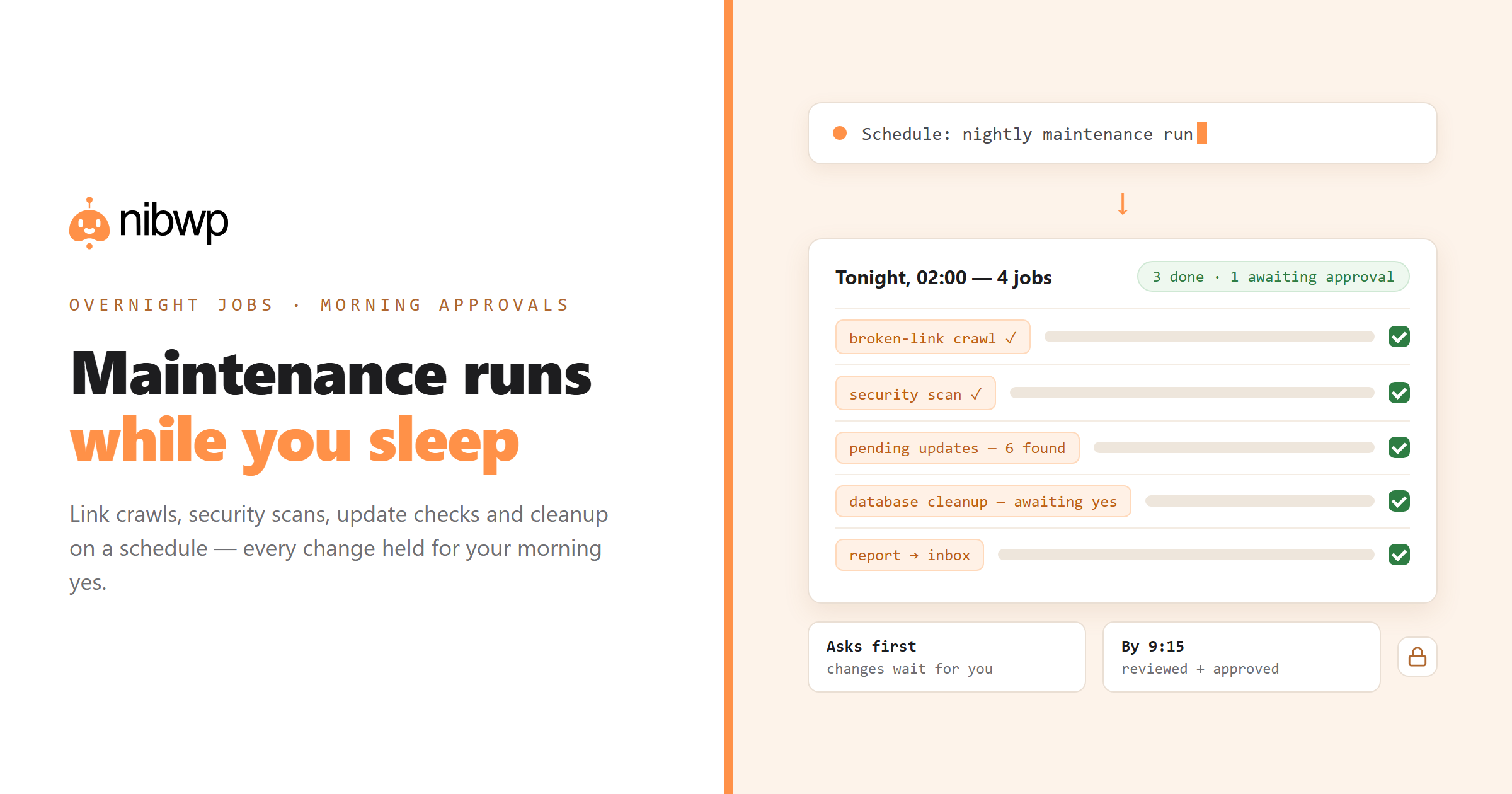
Expect the setup to take about five minutes on a normal host. Everything below uses NibWP, the plugin that turns your WordPress install into the MCP server itself — no proxy service in the middle.
What MCP is, in a minute
The Model Context Protocol is an open standard for connecting AI applications to tools and data. A client speaks one protocol to a server that advertises typed tools — USB for AI context: one shape, many devices. NibWP is an MCP server that lives inside WordPress: it introspects your post types, taxonomies, fields and active plugins, then exposes them as tools an agent can call over HTTPS.
Why not just the REST API? The REST API is for developers writing code ahead of time. MCP is for agents deciding what to do at runtime — every tool is self-describing, so the model knows the shape of every call without you writing glue.
What you need
- A WordPress site on HTTPS (any normal host).
- The free NibWP plugin, installed from the dashboard.
- An AI client that speaks MCP: Claude Code, Claude Desktop, Cursor, ChatGPT or Windsurf.
- Five minutes.
Connect Claude Code to WordPress, step by step
- Install NibWP. Plugins → Add New → search “NibWP” → install and activate. The MCP endpoint exists the moment it's active.
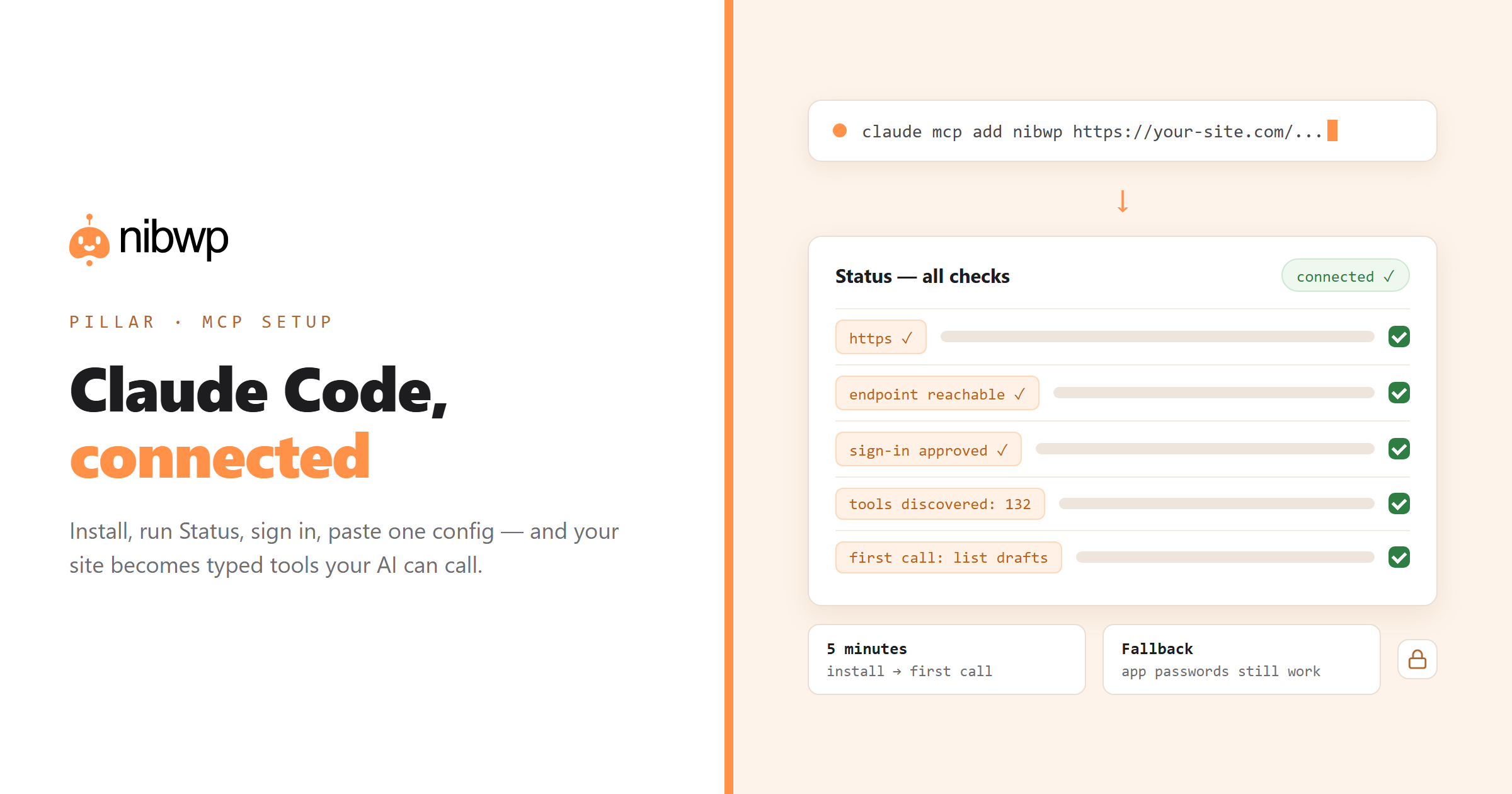
- Run Status. Open NibWP → Status: one screen checks your setup end to end — HTTPS, endpoint reachability, auth — and says in plain words what's wrong and how to fix it, before you touch a client.
- Authorize the client. The current flow is a sign-in: your AI client requests access, you get an approval screen that lists in readable language exactly what you're allowing, and you can refuse anything. (Application Passwords still work as the manual fallback.)
- Add the connection. NibWP generates the exact config for your client — copy it, or use the one-click config for Claude.
- Say something real. “List my draft posts.” If you get titles back, you're connected.
For Claude Code specifically, the generated config is a single CLI command:
# NibWP generates this for you (Settings -> Connect):
claude mcp add nibwp https://your-site.com/wp-json/mcp/nibwp \
  --transport http

# then, inside Claude Code:
# > list my draft posts
# > create a draft post titled "October promotions"
The other clients
Claude Desktop
Use the one-click bundle NibWP generates — it installs the connection without editing JSON by hand. Approve the sign-in screen and the tools appear in Claude's tool menu.
Cursor & Windsurf
Both read an MCP config file; NibWP's Connect screen prints the exact block to paste. Restart the client and the WordPress tools show up alongside your code tools — useful when the same agent edits theme code and site content.
ChatGPT
Add NibWP as a connector using the generated endpoint URL and complete the sign-in. Tool discovery is automatic once authorized.
A request, end to end
- You ask: “Create a draft post titled October promotions with three sections.”
- The client calls the typed ability nibwp/wp-create-post with a declared schema — no scraping, no guessing.
- Because it's a write, NibWP holds it as a plan for your approval (reads run instantly).
- You approve; WordPress creates the draft through its own APIs; the action lands in the audit log; the agent reports back with the edit link.
When it won't connect: the real failure modes
Application Passwords disabled
Some hosts and security plugins disable Application Passwords, which kills the manual auth path. Fix: use the sign-in flow instead, or re-enable Application Passwords for your admin user. Status tells you which case you're in.
No HTTPS
MCP clients refuse plain-HTTP endpoints, and so do we — credentials travel with every call. Fix: install the host's free TLS certificate; every mainstream host has one.
A security plugin blocking the REST API
Hardening plugins that block or throttle the REST API will 403 the MCP endpoint. Fix: allowlist the NibWP endpoint path in the security plugin — you keep the hardening everywhere else.
Domain lock mismatch
NibWP credentials are domain-locked. Moving from staging to production, or www to bare domain, invalidates the old connection by design. Fix: reconnect on the new domain — two minutes, and it's the lock doing its job.
Aggressive server caching
A cache layer that serves the endpoint stale breaks the handshake. Fix: exclude /wp-json/ from page caching — standard practice on any host.
Keeping it safe on a real site
- Reads are read-only, writes are gated. Every mutation arrives as a plan you approve — that's enforced at the plugin layer, not by prompt etiquette.
- User Access controls who. Choose exactly which administrators can see and use NibWP — off for everyone but you by default.
- Scoped, revocable credentials. Each connection is domain-locked and scoped; revoke it in one click.
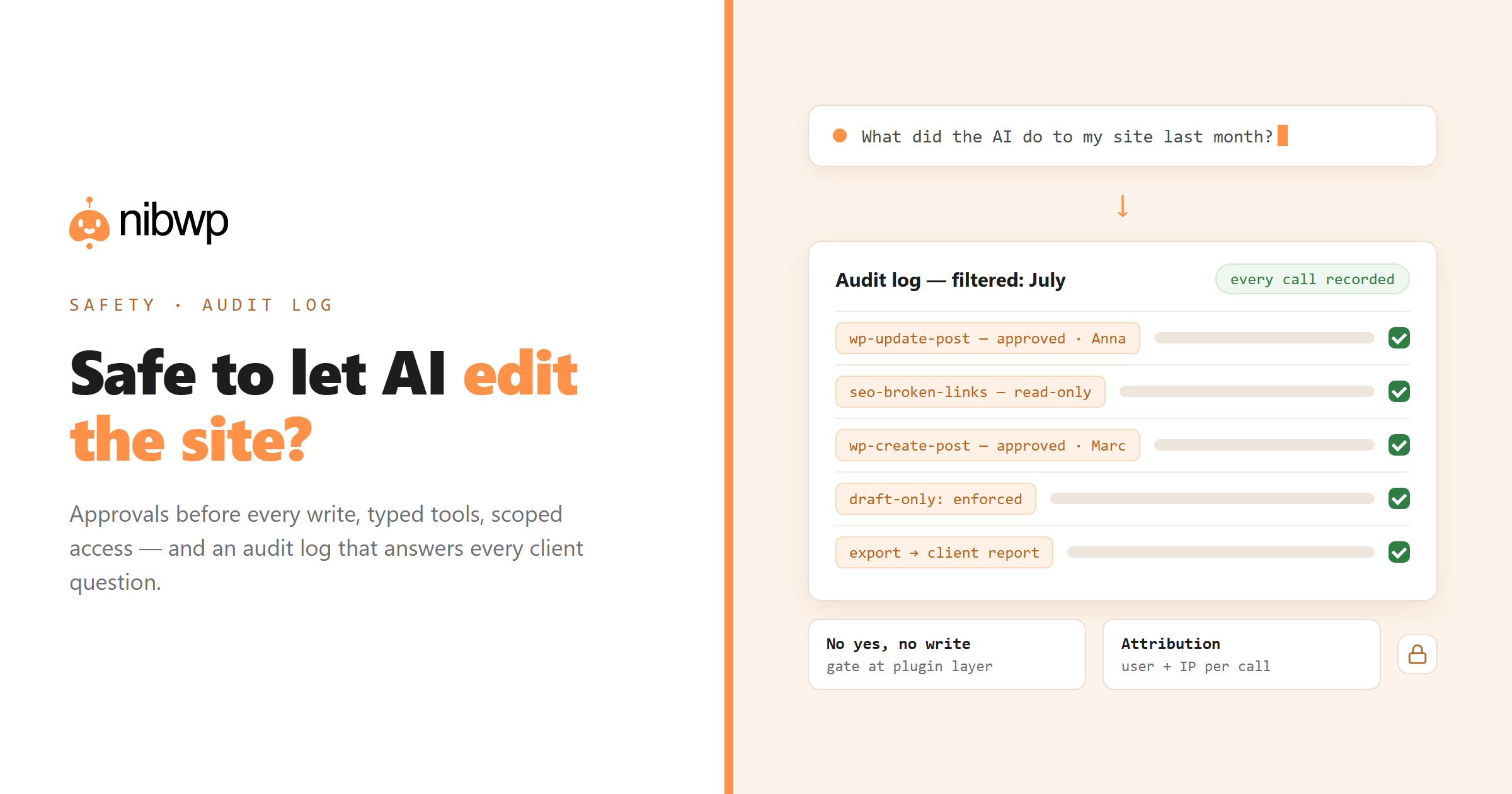
- Everything is logged. Every call — tool, status, user — in a built-in audit log. The full safety argument: is it safe to let AI edit a client's site?
Extending the toolbox
Developers can expose their own tools — any plugin functionality can become a typed ability:
<?php
// Expose a custom tool to your MCP server
add_filter( 'nibwp/tools', function ( array $tools ) {
    $tools[] = [
        'name'        => 'publish_changelog',
        'description' => 'Create and publish a changelog entry.',
    ];
    return $tools;
} );
The bottom line
One plugin, one sign-in, one config snippet — and your WordPress site stops being something AI talks about and becomes something it can operate, with approvals and a paper trail. Run Status first, use the sign-in flow, and the five-minute promise holds.
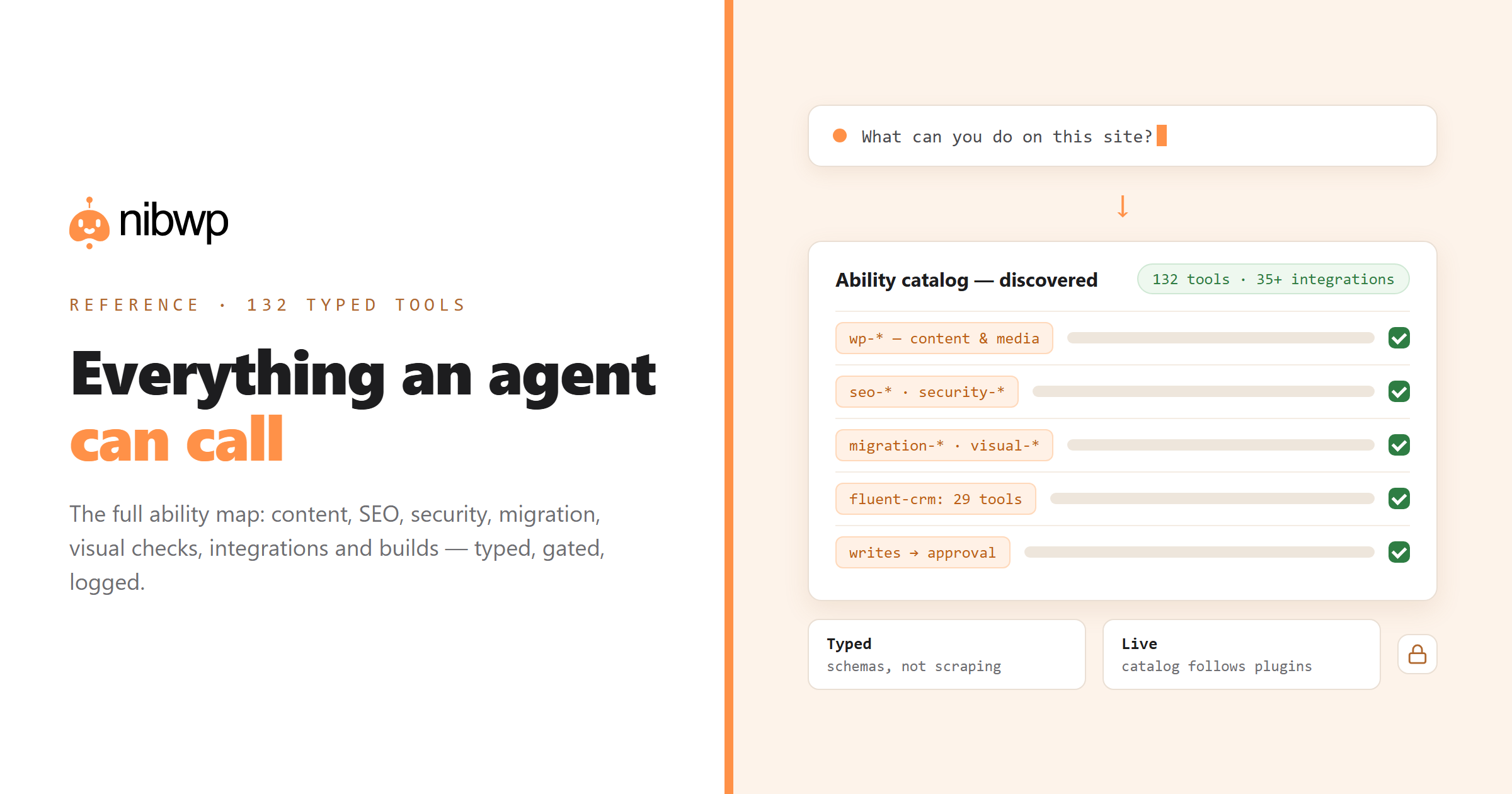
Once connected, see everything an agent can call — the full typed-ability reference — and what it unlocks: the plugin overview, maintenance on autopilot and AI site-building for agencies. Free to start — pricing.