WordPress MCP not working? Every connection error, decoded
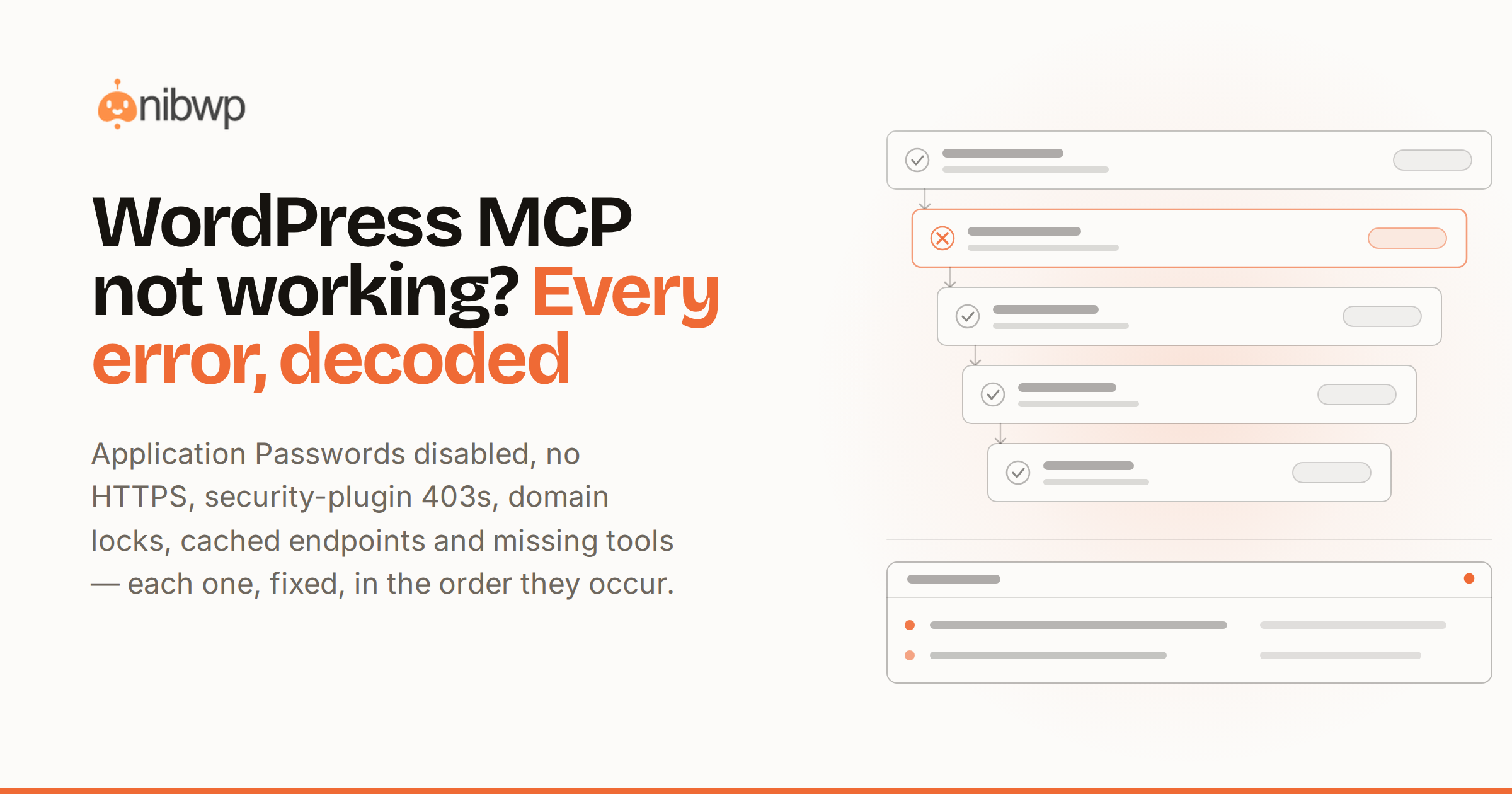
Your WordPress MCP connection isn't working, and every guide says the same thing: “check your credentials.” Thanks. This page is the actual troubleshooting map — the errors that really happen, what each one means, and the fix, in the order they usually occur.
Two tools shortcut most of this. NibWP's Status screen checks the setup end to end and says in plain words what's wrong. And if you haven't connected yet, follow the step-by-step setup first — half of all failures are a skipped step.
“Application Passwords are disabled”
The most common blocker. Hosts and security plugins disable Application Passwords wholesale, which kills the manual auth path before it starts.
- Fix 1: use the sign-in flow instead — NibWP's OAuth-style authorization needs no copied passwords at all.
- Fix 2: re-enable Application Passwords for your admin user (host panel or security plugin settings).
Connection refused: no HTTPS
MCP clients refuse plain-HTTP endpoints — credentials travel with every call. If your site or your staging URL is http://, the handshake never starts. Fix: install the host's TLS certificate; every mainstream host has a free one.
403 or blocked: a security plugin is filtering the REST API
Hardening plugins that block or throttle /wp-json/ return 403s to the MCP endpoint. The connection “worked yesterday” and died when the plugin updated its rules. Fix: allowlist the NibWP endpoint path in the security plugin — keep the hardening everywhere else.
“Invalid credential” after a domain change
NibWP credentials are domain-locked on purpose. Staging to production, www to bare domain, http to https — each is a different domain to the lock. Fix: reconnect on the new domain. Two minutes, and it's the security model doing its job, not a bug.
Random failures, stale responses: page cache on the endpoint
A server cache that caches /wp-json/ serves yesterday's handshake to today's client. Symptoms are the worst kind — intermittent. Fix: exclude /wp-json/ from page caching; it's standard practice and your host's support does it in minutes.
Blocked user agents and firewalls
Some WAF rules block non-browser user agents outright. If curl works from your machine but the AI client can't connect, check the firewall's blocked-agents log and allowlist your client.
Connected, but tools are missing
The catalog is live: integration abilities appear only when their plugin is active, and Pro abilities need the license in place. If WooCommerce tools are missing, WooCommerce isn't active on that site — the fix is on the plugins screen, not the connection.
The five-minute diagnostic order
When you don't know which case you're in, check in this order — each step rules out half the space: (1) open Status and read what it says; (2) confirm the site loads over https:// in a browser; (3) hit /wp-json/ in a browser — if that 403s or times out, it's the security plugin or firewall, not MCP; (4) try the sign-in flow even if you were using Application Passwords; (5) only then dig into client-side config.
The order matters because the failures nest: a blocked REST API makes every auth method fail, and a missing certificate makes everything below it moot. Fixing top-down means you never debug a symptom whose cause is one layer up.
Client-side gotchas
- Stale config after reconnecting. If you reconnected the site (new domain, new credential), the client is still holding the old config — regenerate the snippet and replace it; don't hand-edit tokens.
- The client needs a restart. Cursor and Windsurf read MCP config at startup; a config change without a restart looks exactly like a dead server.
- Two entries, one name. Duplicate server entries from repeated setup attempts confuse tool discovery — keep one entry per site.
Still down? What to collect before asking for help
Three artifacts turn a support thread from a week into an hour: the Status screen's output (it names the failing check), the exact client error text, and whether /wp-json/ loads in a browser from the same network. With those, whoever helps you — host support or ours — starts at the cause instead of the story.
The bottom line
Run Status first — it catches HTTPS, auth and reachability in one screen and tells you which of these cases you're in. Still stuck? The plugin overview covers what a healthy connection looks like, and the ability reference shows what you should see once you're in. NibWP is free to start — pricing.