Use Cursor to manage a WordPress site (not just its code)
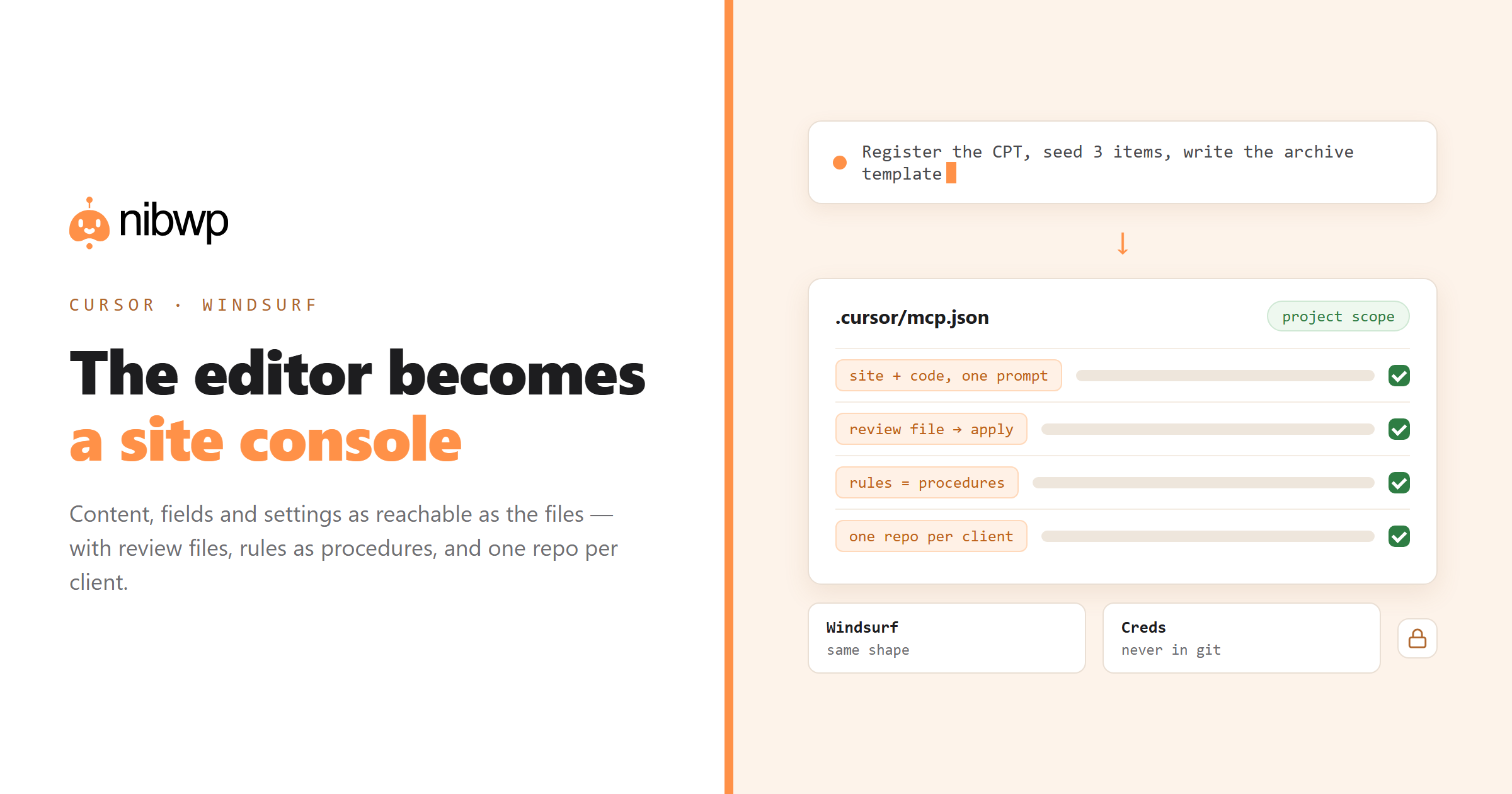
Cursor is an AI-first editor, and most people use it purely for code. Point it at a WordPress site through MCP and it becomes something more useful: a place where the site's content, fields and settings are as reachable as the files. This guide covers the setup, and — more importantly — the workflows where an editor genuinely beats a browser chat.
Windsurf users: the configuration shape is the same, only the file location differs. Everything after the setup section applies to both.
Connecting Cursor to WordPress
Cursor reads MCP servers from a JSON file — project-level keeps each client site with its own repo, which is what you want:
// .cursor/mcp.json
{
  "mcpServers": {
    "nibwp": {
      "url": "https://yoursite.com/wp-json/mcp/nibwp",
      "headers": { "Authorization": "Basic <your-credential>" }
    }
  }
}
Or generate it:
nibwp auth login https://yoursite.com --scope read,write
nibwp agent add cursor
Open Cursor's MCP settings to confirm the server is green, then verify with a prompt that cannot be answered from memory:
List the five most recently modified pages on the site, with slugs and dates.Where an editor beats a chat window
- Template plus data in one prompt.
- Review files.
- Migrations with an intermediate. Read structure from site A into a local file, transform it, write it into site B — with the file inspectable at every step.
- Debugging with both sides visible. When a template renders wrong, having the field data and the template open together shortens the loop dramatically.
Use Cursor Rules as your procedures
Cursor's rules files are the natural place to keep house conventions so every prompt inherits them — class naming, which builder to output, what must never be hard-coded, drafts-only policies. The equivalent of a written procedure, applied automatically:
# .cursor/rules/wordpress.md
- Never write raw HTML into page content. Use the builder's native elements.
- All new pages are created as drafts. Publishing is a human decision.
- Read existing global classes and design tokens before building anything.
- Before any bulk write, propose the changes as a markdown table for review.
The same idea in Claude Code is a Skill; the shape of the thinking is identical, and the ten agency procedures translate directly into rules files.
Managing several client sites
The pattern that scales without accidents:
- One repo per client, each with its own .cursor/mcp.json pointing at that client's site.
- Read-only credentials in any repo you share with contractors.
- Git-ignore the config if it embeds a credential, or use a secret reference.
Gotchas
- Tools not appearing. Reload the window after editing the config; Cursor caches server definitions.
- Wrong site targeted. Almost always a workspace with two servers configured. One project, one site.
- Long jobs stalling. Break bulk work into batches and ask for a progress summary per batch; it also gives you natural review points.
- Credentials in git. Check before your first commit, not after.
Every connection error decoded: WordPress MCP not working. Client comparison: which AI clients work with WordPress MCP.
A worked example: migration with an intermediate file
The pattern that shows off an editor best is a job with three stages, where the middle stage is a file you can inspect.
1. Read the structure of every page on site A: title, slug, sections,
   and which template each uses. Write it to ./migration-plan.json.

2. (I review and edit the file.)

3. Read migration-plan.json and create the matching pages on site B as
   drafts, using our Etch components. One page at a time, report per page.
Because the intermediate is a file rather than conversation state, you can edit it, commit it, diff it after a second run, and hand it to a colleague. Chat-only clients cannot give you that.
What belongs in your rules file
Rules are where the conventions that would otherwise be re-explained in every prompt live. A useful WordPress rules file is short and mostly negative:
# .cursor/rules/wordpress.md

## Output
- Native builder elements only. Never an HTML block containing markup.
- Reuse existing global classes; read them before inventing names.
- Design tokens, never hard-coded hex values or pixel font sizes.

## Safety
- All new content is created as a draft.
- Before any write touching >20 records, propose a review file first.
- Never call a delete tool. List what should be deleted and stop.

## Context
- Read the target page and its template before proposing changes.
- When unsure which site is meant, ask. Never guess between configured servers.
That last rule is worth its line. In a multi-client setup, an agent that asks rather than guesses is the difference between a good day and a bad one.
Windsurf specifics
Everything above applies unchanged; only the config location differs, and Windsurf's rules mechanism is its own memories/rules system rather than a .cursor directory. If you work in both, keep the canonical text of your conventions in one file in the repo and mirror it into each editor's format — the words matter, the file name does not.
FAQ
Can Cursor manage a WordPress site, not just its code?
Yes. Connect the site as an MCP server and Cursor's agent can read and write content, fields, products and settings through typed tools — alongside the code in your repo.
Where does the MCP config live in Cursor?
In .cursor/mcp.json for project scope, or the global config for all projects. Project scope is recommended so each client repo connects only to that client's site.
Does this work in Windsurf too?
Yes — the configuration shape is the same, only the file location differs. Every workflow in this guide applies to both editors.
What are Cursor Rules good for with WordPress?
Encoding house conventions so every prompt inherits them: native builder output only, drafts not publishes, read tokens before building, propose bulk changes as a table first.
How do I avoid the agent editing the wrong client site?
One repo per client with its own config, and name each server after the domain rather than something generic. The name appears in tool calls, so mistakes are visible before they are made.
Is it safe to put a write credential in .cursor/mcp.json?
Only if the file never reaches git. Use a secret reference or git-ignore it, and prefer read-only credentials in any repo shared with contractors.