How to connect ChatGPT to WordPress with MCP
ChatGPT can edit your WordPress site — not by pasting text back to you, but by calling real functions on your server: creating posts, updating products, fixing SEO meta, reading orders. The mechanism is MCP, and connecting the two takes about five minutes once you know where the settings live.
This guide covers exactly that: what you need, where the connector settings are, how to connect ChatGPT to a WordPress site running an MCP server, the first prompts to try, and the limitations that are specific to ChatGPT rather than to WordPress.
What you need
- A WordPress site with an MCP server plugin installed and its AI abilities enabled. NibWP is the one used in the examples; the flow is the same for any compliant server.
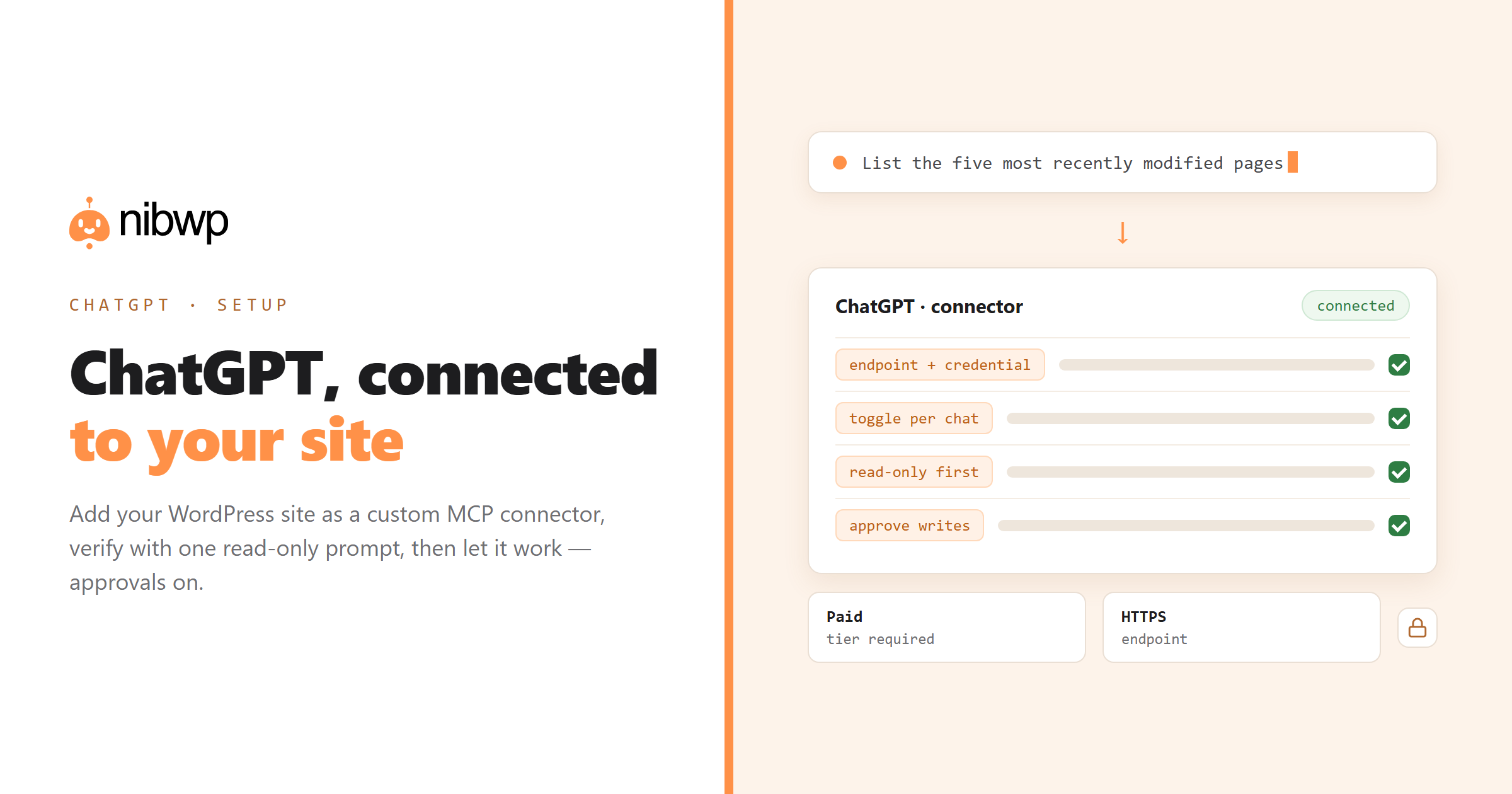
- A ChatGPT plan that supports connectors — custom MCP connectors are a paid-tier feature (Plus, Pro, Business and Enterprise at time of writing). Free accounts cannot add them.
- An HTTPS site. Remote MCP connections require TLS. Local development sites need a tunnel.
- Five minutes and a scoped credential you are comfortable issuing.
Connecting ChatGPT to WordPress, step by step
- Enable abilities on the site. In the plugin settings, turn on AI abilities. Start with read-only scope on a site you care about — you can widen later without redoing anything.
- Get the endpoint and credential. The plugin shows your MCP endpoint URL and lets you mint a credential. Copy both; treat the credential like a password.
- Open ChatGPT's connector settings. Settings → Connectors → Add custom connector (Business and Enterprise workspaces may need an admin to allow custom connectors first).
- Paste the endpoint. Give the connector a recognisable name — the client's domain works well when you manage several sites — and add the authentication details the plugin gave you.
- Enable it in a chat. Start a new conversation, make sure the connector is toggled on for that chat, and confirm the tools appear.
- Verify read-only first. Ask a question that requires a real call before you grant write scope.
A good first prompt, because it proves the whole chain works without changing anything:
Using the WordPress connector, list the five most recently modified pages
on the site with their titles, slugs and last-modified dates.
If that returns real pages, you are connected. If it returns a plausible-looking table of pages that do not exist, the connector is not being used — the model is guessing. Ask it explicitly to call the tool, and check the connector toggle.
Your first useful prompts
Start with reads, then move to a small write with the approval gate on:
# read — safe, immediately useful
Which published posts have no meta description? Show a table with title, slug and word count.

# read — bulk insight
List every product with no featured image, grouped by category.

# write — small and reviewable
Draft a post from this brief: [brief]. House style, H2 structure, internal links to
our three most relevant existing guides, SEO meta set. Save as draft, don't publish.
More prompt patterns, with the full process each one triggers, live in the solutions library.
ChatGPT-specific limitations worth knowing
Being straight about these saves an afternoon of confusion:
- Connector availability varies by plan and workspace. Business and Enterprise admins control whether members can add custom connectors at all.
- The connector must be enabled per conversation.
- Long bulk jobs suit a terminal client better. For a 500-product import, a CLI or an editor-based client handles the iteration and retries more comfortably.
- Local sites need a public HTTPS URL. Remote connectors cannot reach localhost.
If the connector refuses to connect at all, the error is almost always one of six things — they are all decoded in WordPress MCP not working.
Keeping it safe
The same rules apply as with any AI client, and they are worth stating because ChatGPT is often the first one a non-developer connects:
- Start read-only. A read scope can look at everything and change nothing.
- Keep the approval gate on for writes — you see the plan before anything is written.
- Snapshot before bulk operations.
- Read the audit log after the first few sessions; it shows exactly which tools were called.
- Revoke the credential from the plugin if a laptop goes missing — it is per-connection, so nothing else breaks.
The full safety argument, including what an agent still cannot do: is it safe to give an AI agent write access to your WordPress site.
Should you use ChatGPT for this, or another client?
ChatGPT is the right choice if it is already your daily driver and your work is conversational — audits, content, one-off jobs, questions about the site. If you live in an editor, Cursor or VS Code keeps the site next to the code. If you script repeatable runs, a terminal client wins. They are not exclusive: the same site can serve all of them at once, because the server side is identical.
Side-by-side comparison: which AI clients work with WordPress MCP.
FAQ
Can ChatGPT edit my WordPress site?
Yes, when your site runs an MCP server and you connect it as a custom connector. ChatGPT then calls typed tools on your site — creating posts, updating products, fixing meta — with the writes gated behind your approval.
Do I need a paid ChatGPT plan?
Yes for custom connectors. They are available on paid tiers (Plus, Pro, Business, Enterprise); free accounts cannot add a custom MCP connector. In Business and Enterprise workspaces an admin may also need to allow it.
Is it safe to connect ChatGPT to my WordPress site?
With the standard controls, yes: issue a scoped credential (start read-only), keep the approval gate on for writes, snapshot before bulk jobs, and check the audit log. The credential is per-connection and revocable.
Why does ChatGPT say it can't see my site?
Usually the connector is not enabled in that specific conversation, or the credential lacks scope. Toggle the connector on for the chat, then ask it explicitly to call the WordPress tool.
Can ChatGPT work with a local WordPress install?
Not directly — remote connectors need a public HTTPS URL. Use a tunnel to expose your local site, or work against a staging site instead.
Does this work with plugins like WooCommerce and Yoast?
Yes, if your MCP server ships integrations for them. NibWP exposes 45+ plugin integrations, so WooCommerce products, Yoast meta, ACF fields and similar are callable as typed tools.