Figma + MCP: turn Figma frames into native WordPress pages with AI
Connect Figma to your WordPress site through NibWP's MCP server. The AI reads the real design file — node tree, auto-layout, Variables, styles — and converts frames into native pages in the builder you already use. Read-only on the Figma side, verified against the source frame on the WordPress side.
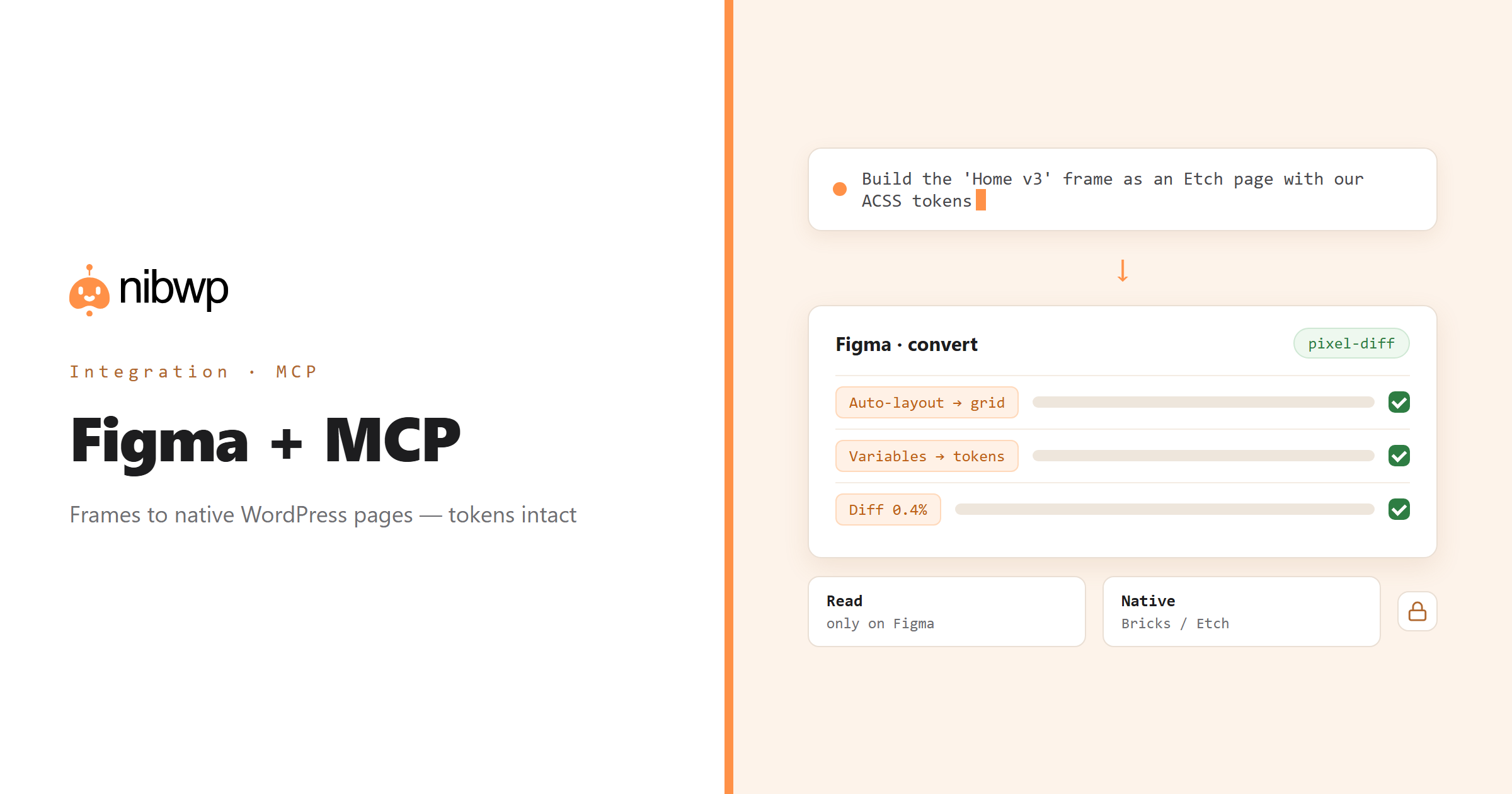
A screenshot tells an agent what a design looks like. The Figma file tells it what the design means: which frames are components, how auto-layout spaces and aligns things, which colours and sizes are Variables rather than one-offs. NibWP reads that through Figma's API, so spacing becomes layout rules and tokens stay tokens instead of hard-coded values.
The integration is the reading half — pull files, list frames, read nodes, fetch a frame with the detail conversion needs. The Figma Pro Skill adds the writing half: analyse the structure, detect which builder the site uses, convert the frame into native Bricks or Etch output, and pixel-diff the result against the source. Version 1 never writes to your Figma file.
Figma is one of the 45+ integrations inside NibWP's WordPress MCP server — 7 typed Figma tools on top of 190+ WordPress tools. The full tool reference lives on the Figma integration page; this page is about what those tools let you do.
What AI can do in Figma
Design to page
An approved frame becomes a real page in your builder — native sections and elements, not an exported image.
Token mapping
Figma Variables map onto the design system the site already uses — ACSS, Bricks or Etch tokens — so the build stays on-system.
The real node tree
Frames, components and nesting read from the file, so the output has the same structure the designer built.
Auto-layout understood
Direction, gap, padding and alignment become layout rules instead of guessed margins.
Design audits
Compare what was designed with what was built and find where the two drifted.
Component libraries
Read a component set and rebuild it as reusable components in WordPress.
The Figma tools NibWP exposes
Every Figma capability is a typed MCP tool with a schema the AI client can read, so it calls the right thing with the right arguments instead of guessing at your database. Read tools are free to explore; write tools go through the approval flow.
nibwp/figma-pull— Pull a file or frame into the working context.nibwp/figma-list— List files, pages and frames available to the connected account.nibwp/figma-get— Read one node with its properties and children.nibwp/figma-pro-fetch— Fetch a frame with the detail conversion needs — layout, tokens, styles.nibwp/figma-pro-analyze— Analyze structure before building anything.nibwp/figma-pro-detect-builder— Work out which builder the site uses, so output is native to it.nibwp/figma-pro-convert— Convert a frame or component into native WordPress output.
Example prompts
Plain English is the interface. These are the kinds of requests agencies run against Figma every day:
- “Pull the 'Home v3' frame and build it as an Etch page using our ACSS tokens.”
- “List every page and top-level frame in the marketing file.”
- “Map the Variables in this file to our ACSS palette and show me what has no match.”
- “Convert the 'Pricing card' component set into reusable Bricks components.”
- “Compare the live /about/ page with the About frame and list what drifted.”
How it works with Figma
There is no new dashboard to learn. You describe an outcome, NibWP plans it, and you approve before anything is written.
- Connect — install NibWP, connect Claude, Cursor, ChatGPT or any MCP client. Figma is detected automatically and its tools appear in the client.
- Describe — name the file or frame and what you want — a page, a component set, an audit. NibWP pulls the frame, analyses structure and detects your builder before converting.
- Approve — NibWP shows the plan: which records it will create or change, and what will stay untouched. Nothing happens until you say yes.
- Done — it writes real Figma data through the plugin's own APIs and reports back in plain English, with every change in the audit log.
Why not just a generic AI?
A general-purpose assistant can write text about Figma; it cannot safely operate it. The difference is structure, context and control.
A generic assistant
- Works from a screenshot and guesses spacing, sizes and colours
- Outputs generic HTML for you to rebuild in the builder
- Has no idea which design tokens your site already uses
Figma + NibWP
- Reads auto-layout, Variables and the node tree from the file itself
- Outputs native Bricks or Etch, detected from your site
- Maps tokens to your system and pixel-diffs the result
Safe by default
NibWP is built for agencies running client sites, so control and traceability come first:
- Nothing is written without your approval — you see the plan first, and you can run in draft mode.
- Every action is recorded in a full audit trail, per site and per user.
- It runs on Figma's own functions and APIs — your data stays on your server, nothing is copied to a third-party service.
- The Figma side is read-only by design — nothing NibWP does can change the design file. Conversion writes only to WordPress, through the same approval flow as everything else.
Related integrations
Most sites pair Figma with other plugins NibWP already speaks: Etch + MCP, Bricks + MCP, Automatic.css + MCP, Breakdance + MCP, Builderius + MCP, Elementor + MCP. All of them ship in the same plugin — see pricing for what each plan includes.
Questions, answered
Everything about running Figma with NibWP.
Do I need a Figma plugin installed?
Can it edit my Figma file?
How is this different from giving an AI a screenshot?
Which builders can it output to?
Which NibWP plan do I need?
Ship the design, not a rebuild of it.
Get the Bundle — the Figma integration plus the Pro Skills that turn frames into native Bricks and Etch pages.